Starting and Stopping
How to start and stop a load test
Starting a load test
To start the load test, click Start in the context menu of the load test table, or click the Start button on the load test details page:
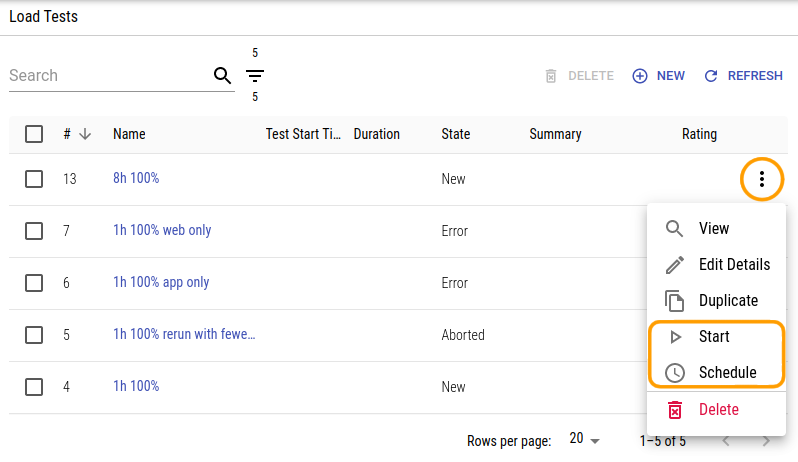 Start or schedule the configured load test via context menu.
 Start or schedule the configured load test on the test page.
A confirmation dialog prompts you to review and confirm the execution settings. Clicking Start Load Test initiates the run:
- Fetches source code: pulls the latest state of the test suite from the repository.
- Builds test suite: compiles the project with Maven and populates the dependency cache.
- Provisions agents: allocates and boots the required agent instances.
- Executes scenarios: dispatches load profiles across agents and measures system metrics for the configured duration.
Scheduling a load test
Instead of starting a load test immediately, you can schedule it for automatic execution. Ensure all test settings and agent configurations are accurate beforehand, as scheduling does not validate external dependencies until execution begins. You can cancel schedules or trigger immediate starts at any point.
To manage schedules, click Schedule in the table context menu or on the test details page. Select your target date, time, and time zone (UTC by default). Convenient quick-select shortcuts (+1H, Tomorrow) simplify timing choices.
 Scheduling a load test.
Stopping a load test
XTC automatically completes load tests when their duration expires. The platform deprovisions cloud agents, collects test results, and generates the final performance report.
If XTC encounters an issue releasing an agent machine, it flags the Terminate Agents step on the test’s Status tab.
Aborting a load test
You can abort a running load test early if unexpected conditions arise—such as incorrect test suite parameters, high error spikes on the scenario overview, or backend outages. To stop execution, click Abort Load Test in the top-right corner.
 Abort the load test.
A modal prompts you to confirm the cancellation. If test scenarios already produced data, you can choose which artifacts to collect and decide whether to generate a partial report. Skipping unneeded artifacts, such as full result browsers, accelerates final data collection.
XTC immediately stops running scenarios and deprovisions all active agents.
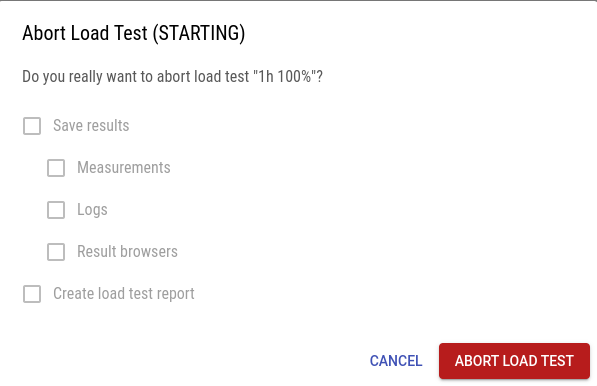 Popup after clicking Abort Load Test in a test run.
While the abort procedure is in progress, the Abort Load Test button turns off for all users until cleanup completes.