Quick Start
How to start, stop, and review a predefined load test in XTC.
How to run a predefined load test
As a tester, you can start, stop, and review configured load tests in XTC. This guide provides a quick overview of running a load test, with links to detailed documentation for each stage.
Navigate to the load test
Navigate to the load tests overview by selecting Load Tests in the left menu and locate the load test you want to run (marked with status New if not yet executed). Click the test name to view details.
If you received a direct link to the test, opening the Status tab displays: “This load test was not started yet.”
Start the load test
To start the prepared load test, select Start from the load test table context menu or click the Start button on the details page:
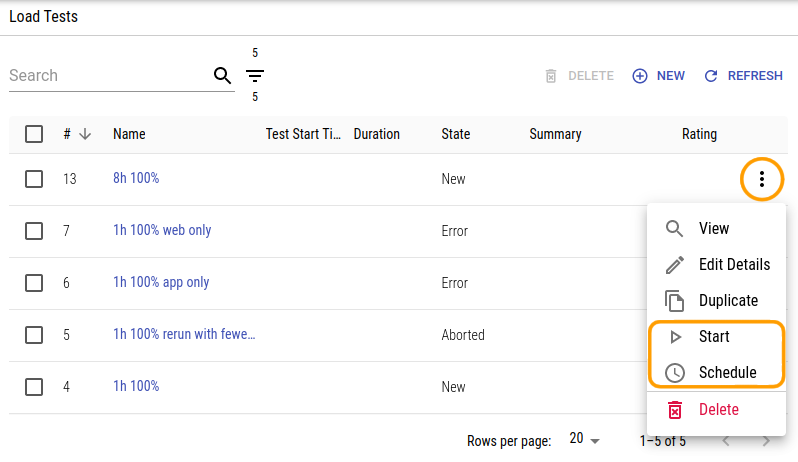 Start or schedule the configured load test via context menu.
 Start or schedule the configured load test on the test page.
Confirm the prompt to proceed with the specified settings. Clicking Start Load Test initiates execution: XTC checks out the repository commit, compiles the test project, provisions the requested agent machines, and executes the test scenarios for the scheduled duration.
Monitor the load test
Once started, track progress on the Status tab. Steps update to done or failed as execution proceeds.
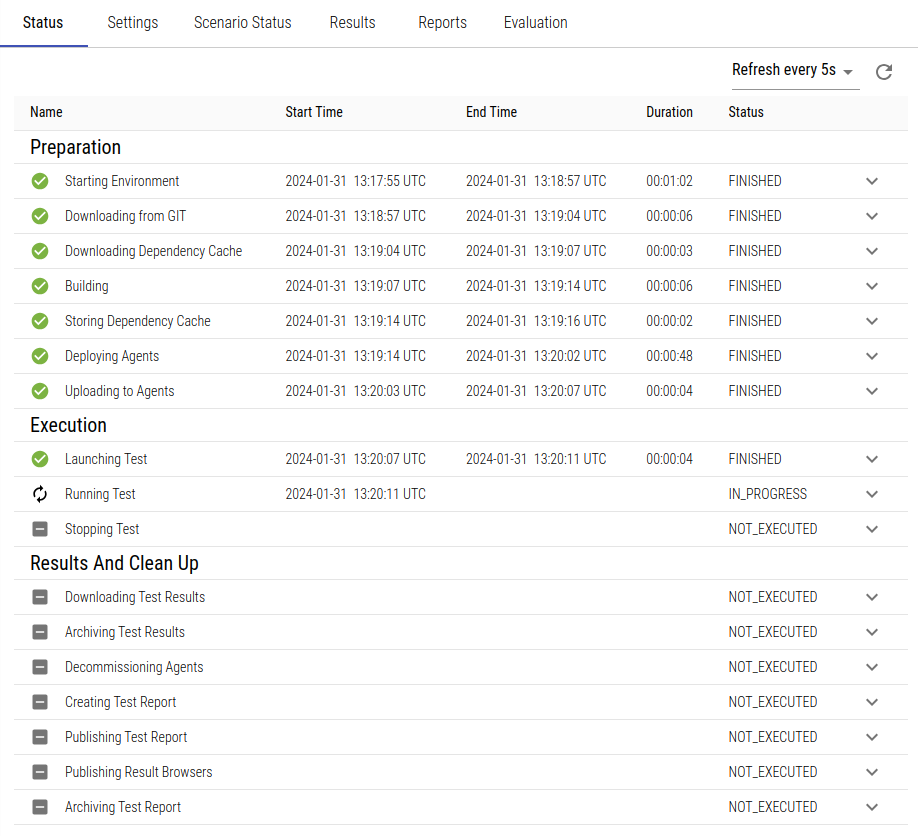 The status view for a running load test.
The Scenario Status tab displays metrics while the test runs or after it finishes. This view lists all active scenarios alongside state indicators, active user counts, average runtimes, events, and error counts:
 The scenario status view for a running load test.
Finish the load test
Load tests stop automatically once the scheduled duration completes. XTC deprovisions the agent machines, downloads results, and generates a test report.
To stop an active test early, click Abort Load Test in the top-right corner.
 Abort the load test.
Load test reports
XTC automatically generates a report when the load test finishes. The generated report appears on the Reports tab. You can inspect reports directly in the browser or download them as compressed archives.
Rerun the same load test
To rerun a test with identical settings, XTC allows duplicating existing tests. Navigate to the Load Tests overview of your project and select Duplicate from the test context menu:
 Duplicate an existing load test.
You can then start, monitor, and complete the duplicated test as described in Start the load test.