10.0.x
XLT 10.0.0 (beta-5)
Work in progress. Please check back later.
Version 10 is a major release of XLT. It comes with new features, but also some incompatible changes. See below for an overview of the most important new capabilities and changes.
You may need to migrate your test suites for use with this new version. Please read the Test Suite Migration section carefully.
Framework Changes
XLT now uses virtual threads to execute load testing scenarios. Virtual threads, a feature of Java 21, are a much lighter alternative to platform threads. They enable test suite designers to configure extremely high numbers of concurrent users in their test suites, which is typically not possible with regular platform threads.
There is no change to the programming model. The developer-friendly one-thread-per-activity approach remains the same.
Virtual threads are enabled by default. To use platform threads instead, turn off virtual threads in the configuration of your test suite:
com.xceptance.xlt.virtualThreads.enabled = false
Note that virtual threads do not make the underlying machine “faster”. They simply allow for higher concurrency with the same set of resources. Therefore, ensure that the machine matches your intended load profile.
You may still observe the JVM creating additional native threads during test execution. If the JVM determines that more carrier threads are needed, it will spawn new native threads. You can limit this behavior by setting the jdk.virtualThreadScheduler.maxPoolSize property to a value lower than the default of 256. This property can be added to the jvmargs.cfg file in the <xlt>/config directory. Typically, you will not need to adjust this setting unless you want to limit the number of native threads more aggressively.
Reporting
Dynamic Charts
The Dynamic Overview charts have been improved. They now display data in the report’s configured time zone, not just in UTC. Additionally, the gray minimum-maximum band is now preserved when zooming in. Finally, the tooltip now also shows the count/s value.

Image: Dynamic Overview Charts
Moving Averages
The Averages chart can now include additional moving averages alongside the standard moving average. The look-behind window used to calculate a moving average can now be defined not only by a percentage of previous values, but also by a time range. Additionally, moving average series lines now start from the very first data point in the chart, rather than waiting for the first complete look-behind window.
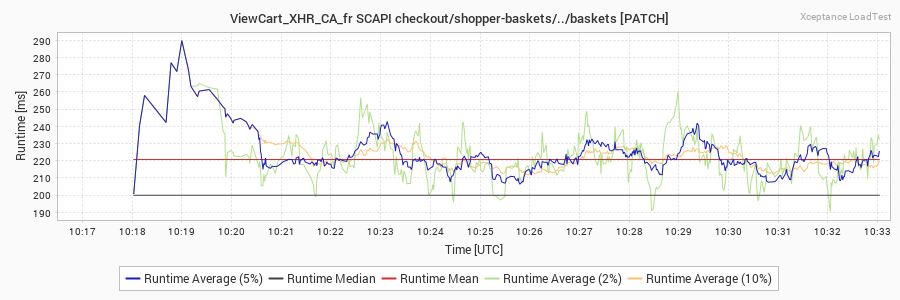
Image: An Example of the New Averages Display
The report generator now creates three moving averages by default. The 5% standard moving average known from previous reports is now accompanied by 2% and 10% moving averages.
The configuration of moving averages in the <xlt>/config/reportgenerator.properties file has been adjusted to accommodate these changes. See below for an example:
## The standard moving average with a window of 5% of the values.
com.xceptance.xlt.reportgenerator.charts.commonAverage.type = percentage
com.xceptance.xlt.reportgenerator.charts.commonAverage.value = 5%

## An additional moving average with a window of 10% of the values.
com.xceptance.xlt.reportgenerator.charts.averages.1.type = percentage
com.xceptance.xlt.reportgenerator.charts.averages.1.value = 10%

## An additional moving average with a window of 10 minutes.
com.xceptance.xlt.reportgenerator.charts.averages.2.type = time
com.xceptance.xlt.reportgenerator.charts.averages.2.value = 10m
Test Suite Migration
As mentioned above, XLT 10 includes breaking changes. In order to migrate your test suites and their associated libraries, you must complete the following steps.
Review the Code
When you want to use the new virtual thread feature, you have to ensure that your codebase does not use ThreadGroup. If you do, you have to refactor your code to use InheritableThreadLocal instead. For example:
// Old code
private static final Map<ThreadGroup, Context> CONTEXTS = new ConcurrentHashMap<>(101);

// New code
private static final InheritableThreadLocal<Context> CONTEXTS = new InheritableThreadLocal<>();
The specific refactoring required will depend on your original intent.
{% note %}
Virtual threads are not created with a ThreadGroup. Therefore, if you used ThreadGroup to share data between threads or look up a thread context, you must refactor your code to use InheritableThreadLocal instead. Only the threads carrying the virtual load test users are virtual threads. All forked threads from a virtual thread are also virtual threads. Because XLT uses the thread context to communicate measurements within the framework, the context must be preserved correctly.
{% endnote %}
If you don’t see measurement values for requests or your suite is not running as expected, you should check if you used ThreadGroup in your test code. Always cross-check first by disabling the virtual threads using the property com.xceptance.xlt.virtualThreads.enabled = false.
Fix Compile Errors
Due to new features and code cleanups, there may be incompatible API changes. Typical test suites are not affected by these changes, but yours might require minor adjustments. Please update your code accordingly.
The
XltFirefoxDriver.Builderno longer offers to set theFirefoxProfileobject and the (deprecated)FirefoxBinaryobject, but instead offers to set aFirefoxOptionsobject. You can set the profile and the path to the Firefox binary on thatFirefoxOptionsobject.The
ReportProviderConfigurationinterface no longer provides theint getMovingAveragePercentage()method. Instead, it offers these two alternative methods:MovingAverageConfiguration getCommonMovingAverageConfig()List<MovingAverageConfiguration> getAdditionalMovingAverageConfigs()
Since we have updated HtmlUnit to the new major version 5.x, there may be further incompatible API changes. Adjust your code accordingly.
- The method
HttpClientConverter.nameValuePairsToHttpClient(List)does no longer exist. This method was often used in tandem withURLEncodedUtils.format(List, String)to format query string parameters. Now there is an alternative methodHttpUtils.toQueryFormFields(List, Charset)that performs these two steps in one go.
Test Your Scenarios
Now it’s time to verify that everything still works as it did before. Start by running the test scenarios from your IDE. They should run and produce the expected results. Then run a small load test. Check the results and the output in all log files.
Review the Report Generator Configuration
As mentioned above, the XLT report generator can now create additional moving averages. You can configure them in the <xlt>/config/reportgenerator.properties file. Check the defaults to see if they work for you and adjust them as needed.