Applitools Plugin
Visual Assertions
Beyond functional testing, verifying the look and feel of the application under test (visual assertions) is often necessary. While there are a few ways to automate such tests, using AI for this purpose is one of the most popular approaches. The Applitools testing framework addresses this need. To facilitate integration of this framework into a Neodymium project, the Neodymium Plugin Applitools can be used.
Getting Started
First, add this plugin as a dependency in your maven project. To have the most up-to-date information about how to do this, please see the instructions below the plugin project itself.
Once the dependency is included, the plugin must be configured using the config/applitools.properties file. Analogous to neodymium.properties, the configurations in config/applitools.properties can be overwritten with ones from config/dev-applitools.properties.
Applitools properties
The table below lists all available properties to configure the Applitools Plugin. In case they need to be changed for the current test, Applitools.getConfiguration() can be used.
When using this method, please mind that all configurations will be cleared and read from the config/applitools.properties file in setup methods (ApplitoolsApi.setupGlobal(), ApplitoolsApi.setupBasic() and ApplitoolsApi.setupGroupingOfTestsByName(batchName)).
| Property | Default value | Is optional | Description |
|---|---|---|---|
applitools.projectName | - | true | will stay in the description of every screenshot under title ‘App:’ |
applitools.matchLevel | STRICT | true | default match level in project. To change one for current test, please use ApplitooolsApi.setMatchLevel(matchLevel) method |
applitools.throwException | false | true | defines, if to throw an exception after test, where mismatches were found |
applitools.apiKey | - | false | your applitools api key, read here how to get one |
applitools.batch | - | true | name of the batch all your test should be grouped into (works only for sequential run or run in parallel threads, not for maven forks) |
applitools.hideCaret | true | true | option to set whether Eyes should hide the cursor before the screenshot is captured. Can be changed at any point of the test using ApplitoolsApi.setHideCaret(hideCaret) |
applitools.waitBeforeScreenshot | 100 | true | amount of time in milliseconds that Eyes will wait before capturing a screenshot. By default 100 milliseconds. Can be changed at any point of the test using ApplitoolsApi.setWaitBeforeScreenshot(waitBeforeScreenshots) |
As shown in the table above, the only mandatory parameter is applitools.apiKey. Once this parameter is filled with a value, visual assertions can be started.
Before making any assertions, please call ApplitoolsApi.setupGlobal(), ApplitoolsApi.setupBasic() or ApplitoolsApi.setupGroupingOfTestsByName(batchName) (the difference among these methods will be described in chapter Batches) and ApplitoolsApi.openEyes(testName).
So your setup for test can look like following:
    @Rule
    public TestName name = new TestName();

    @BeforeEach
    public void setup()
    {
        ApplitoolsApi.setupGlobal();
        ApplitoolsApi.openEyes(name.getMethodName());
    }
The value you passed as parameter to ApplitoolsApi.openEyes(testName) will be displayed here:

Example test name in Applitools Test Manager.
The test is now ready to make visual assertions. There are a few options to do this:
- to assert the whole page, use
ApplitoolsApi.assertPage(pageDescription), where pageDescription is the name of the page. - to assert one element on the page, use
ApplitoolsApi.assertElement(condition, imageDescription), where condition is org.openqa.selenium.By object, which will be used to select the element and imageDescription is the name of the element. - to assert element collection use
ApplitoolsApi.assertElements(condition, description), where condition is org.openqa.selenium.By object, which will be used to select the elements and description is the name of the element.
The description parameter, passed to these methods will be displayed here:
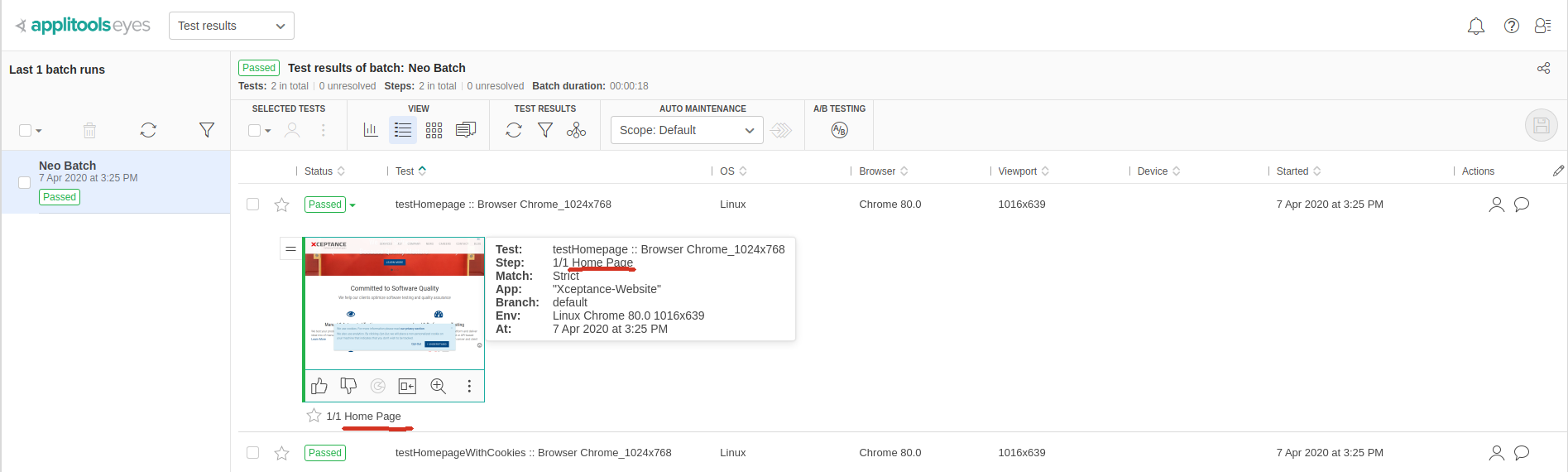
Example page description in Applitools Test Manager.
At the end of each test please call ApplitoolsApi.endAssertions().
Batches
To group tests together you can use batches. Note that this option works only for sequential run or run in parallel threads, maven forks are not supported.
So if you want to run tests in parallel, please configure it with following input to the pom.xml
  <build>
      <plugins>
          <plugin>
              <groupId>org.apache.maven.plugins</groupId>
              <artifactId>maven-surefire-plugin</artifactId>
              <version>${surefire.version}</version>
              <configuration>
                  <parallel>classes</parallel>
                  <threadCount>2</threadCount>
              </configuration>
          </plugin>
      </plugins>
  </build>
The attribute parallel stays for level of parallelism, e.g. classes or methods. Please, mind that it’s not recommended to set the level lower than classes.
The attribute threadCount determines the maximum number of parallel runs.
To group all tests to one default batch, you should specify the name of the default batch in config/applitools.properties under the property applitools.batch
as mentioned above.
As the name is set, call ApplitoolsApi.setupGlobal() before each test that belongs to this batch.
In case some part of tests should be grouped in separate batch, you can use ApplitoolsApi.setupGroupingOfTestsByName(batchName).
If you don’t want to manage batches, you are free to use ApplitoolsApi.setupBasic(). In this case test will be placed in its own batch
with the name passed in ApplitoolsApi.openEyes(testName)
Filtering with custom properties
Another option to accumulate tests is to group them within one batch. For this purpose you can use ApplitoolsApi.addProperty(name,value) method.
Regarding this method, after execution of following code before the tests, related to category
    @BeforeEach
    public void setupBatch(TestInfo testInfo)
    {
        ApplitoolsApi.setupGlobal();
        ApplitoolsApi.addProperty("purpose", "category");
        ApplitoolsApi.openEyes(testInfo.getDisplayName());
    }
and the following before the tests, related to home page
    @BeforeEach
    public void setupBatch(TestInfo testInfo)
    {
        ApplitoolsApi.setupGlobal();
        ApplitoolsApi.addProperty("purpose", "homepage");
        ApplitoolsApi.openEyes(testInfo.getDisplayName());
    }
it is possible to group them like this:

Example grouping by custom properties in Applitools Test Manager.